[Smart Work]14. 내 손안의 AI 비서: 이미지도 AI에게 맡기면 칼퇴가 현실이 됩니다! (Your AI Assistant: Hand Over Image Editing to AI for Timely Departures!)
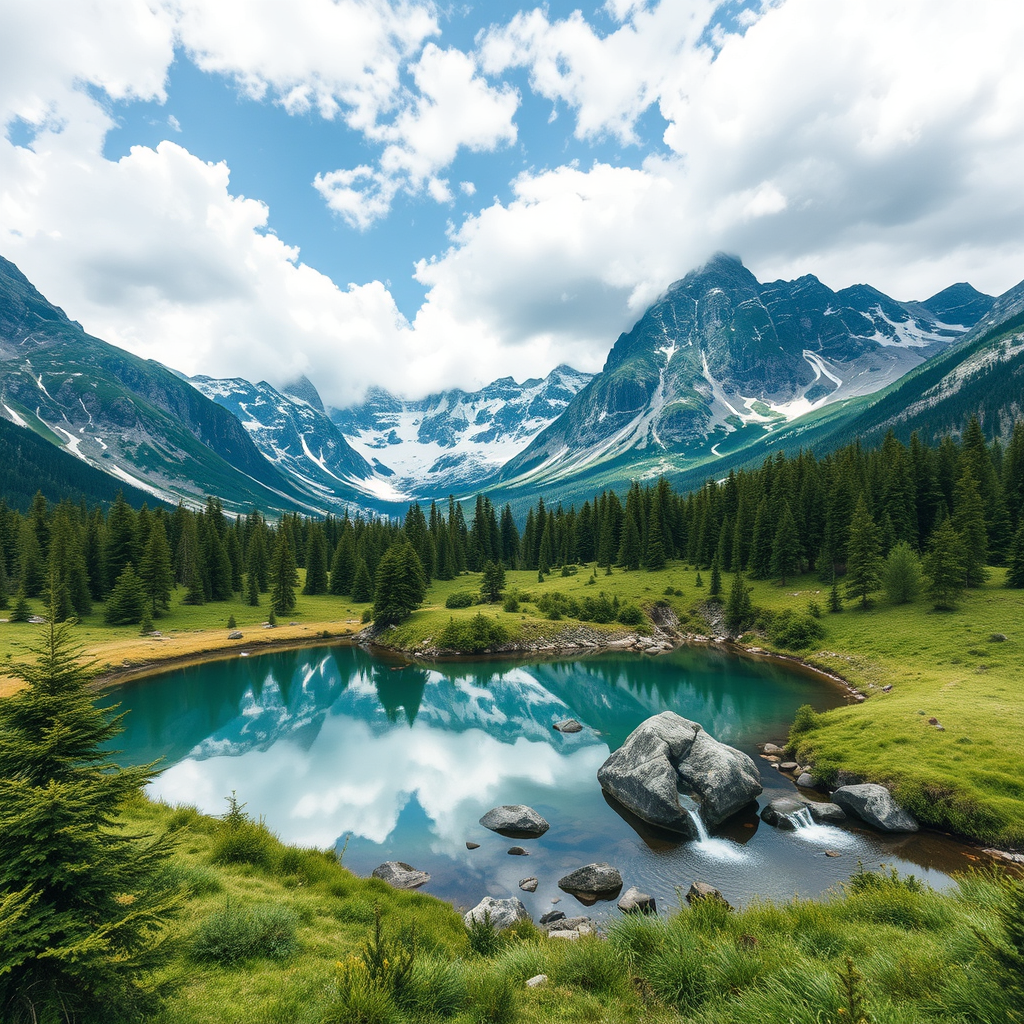
안녕하세요! '내 손안의 AI 비서' 시리즈로 여러분의 스마트 워크를 돕고 있는 IT 기획 팀장입니다. 솔직히 말해서, 저도 예전에는 이미지 편집이라면 포토샵 켜는 것부터가 일이었어요. 😩 복잡한 배경을 지우거나, 사진에 없는 부분을 상상해서 채워 넣는다는 건 꿈도 못 꿨죠. 그런데 요즘은 AI 덕분에 이 모든 과정이 너무나 쉬워졌다는 사실, 알고 계셨나요? 오늘은 이미 가지고 있는 이미지를 AI로 마법처럼 수정하고 확장하는 실전 팁을 알려드릴게요. 진짜, 칼퇴가 현실이 됩니다! 🚀
AI 이미지 편집, 왜 이제서야 알았을까요? 💡
저는 매일 수많은 보고서와 제안서 작업을 하는데요, 여기에 들어갈 이미지를 만들고 수정하는 데 은근히 많은 시간을 썼어요. 하지만 AI를 활용하면서부터는 확 달라졌죠. AI 이미지 편집은 단순히 사진을 보정하는 수준을 넘어, 우리의 상상력을 현실로 만들고 불필요한 반복 작업을 극적으로 줄여줍니다. 한 번 경험해보면 '왜 이제서야 알았을까?' 하는 생각이 절로 들 거예요. 생산성 향상은 물론, 작업의 퀄리티까지 한 단계 업그레이드할 수 있답니다.
부분 수정: 원하는 곳만 쏙! 🎯 (Inpainting)
이미지 속 특정 부분만 바꾸고 싶을 때, 전체를 다시 만들 필요 없이 AI가 알아서 '뿅!' 하고 바꿔준다면 어떨까요? 이걸 바로 부분 수정(Inpainting)이라고 부릅니다. 예를 들어, 사진 속 인물의 옷 색깔을 바꾸거나, 갑자기 나타난 불필요한 물건을 감쪽같이 지우는 등의 작업이 가능해요. 특정 AI 툴에서는 브러시로 지우고 싶은 부분을 칠한 다음, 원하는 내용을 텍스트로 입력하기만 하면 AI가 기가 막히게 새로운 요소로 채워주죠.
[예시 📝] Inpainting, 이렇게 활용해보세요!
사무실 사진을 찍었는데, 벽에 걸린 시계가 너무 낡아 보인다고요? AI 툴로 시계 부분만 선택한 후 “모던한 디자인의 디지털 시계”라고 입력해보세요. 몇 초 만에 세련된 시계로 바뀌어 있을 거예요. 정말 신기하죠?
배경 제거: 깔끔하게 똑! 떨어지게! ✂️ (Background Removal)
쇼핑몰 상품 사진이나 깔끔한 프로필 이미지가 필요할 때, 배경 때문에 늘 고민이 많으셨죠? AI의 배경 제거 기능은 복잡한 머리카락이나 섬세한 외곽선까지 놀랍도록 정확하게 잘라내줍니다. 이제 더 이상 포토샵에서 누끼 따느라 밤샐 필요가 없어요! 배경이 제거된 이미지는 다른 배경과 합성하거나, 웹사이트나 보고서에 깔끔하게 활용하기 좋습니다.
온라인에서 무료로 사용할 수 있는 remove.bg 같은 서비스나, 포토샵, 픽스아트 등 최신 이미지 편집 프로그램에 내장된 AI 기능을 활용해보세요. 클릭 한 번으로 배경이 순식간에 사라지는 마법을 경험할 수 있습니다.
아웃페인팅: 이미지 캔버스를 무한 확장하다! 🖼️ (Outpainting)
가끔 찍은 사진의 구도가 조금 아쉽거나, 더 넓은 풍경을 담고 싶을 때가 있잖아요? 이럴 때 아웃페인팅(Outpainting) 기능이 빛을 발합니다. AI가 기존 이미지 바깥 영역을 분석하여 주변 환경을 자연스럽게 생성해 이미지를 확장해주는 기술이에요. 마치 화가가 그림을 그리는 것처럼, AI가 캔버스를 무한히 넓혀주는 거죠. 파노라마 이미지를 만들거나, 특정 비율에 맞게 이미지를 늘려야 할 때 정말 유용합니다.
| 활용 사례 | 설명 |
|---|---|
| 파노라마 사진 만들기 | 일반 사진을 와이드한 풍경 사진으로 확장하여 더 웅장한 느낌을 줍니다. |
| 콘텐츠 비율 맞추기 | 인스타그램, 유튜브 썸네일 등 특정 플랫폼에 맞는 비율로 이미지를 자연스럽게 늘립니다. |
| 장면 보충 및 창작 | 이미지 바깥에 존재할 법한 요소를 AI가 상상하여 채워 넣어, 원본 이미지를 더욱 풍성하게 만듭니다. |
AI가 생성한 이미지나 수정된 이미지라도 원본 이미지의 저작권을 항상 확인해야 합니다. 상업적으로 사용하거나 타인의 저작물을 기반으로 수정할 경우, 문제가 발생할 수 있으니 주의해주세요. 또한, 생성된 이미지의 품질이나 사실성을 한 번 더 확인하는 습관을 들이는 것이 좋습니다.
AI 이미지 편집, 이젠 선택이 아닌 필수! 📝
어때요? AI 비서와 함께하는 이미지 편집, 생각보다 훨씬 쉽고 강력하죠? 오늘 다룬 주요 AI 이미지 편집 기술을 다시 한번 요약해볼게요.
- 부분 수정 (Inpainting): 이미지의 특정 영역을 자유롭게 변경하거나 제거하여 완벽한 이미지를 만듭니다.
- 배경 제거 (Background Removal): 복잡한 배경을 단숨에 없애고, 원하는 곳에 활용할 수 있는 깔끔한 개체 이미지를 얻습니다.
- 아웃페인팅 (Outpainting): 이미지의 캔버스를 상상력만큼 넓혀, 구도를 개선하거나 더 풍성한 장면을 연출합니다.
- 부분 수정 (Inpainting): 이미지 속 특정 요소 변경/삭제로 완벽한 연출!
- 배경 제거 (Background Removal): 클릭 한 번으로 상품, 인물 배경 깔끔하게 분리!
- 아웃페인팅 (Outpainting): 이미지 캔버스를 확장하여 구도 개선 및 장면 창조!
자주 묻는 질문 ❓
AI 비서 활용법, 어렵지 않죠? 오늘 배운 AI 이미지 편집 팁으로 여러분의 업무 효율이 한 단계 오르기를 바랍니다. 이제 복잡한 이미지 작업 때문에 칼퇴를 포기하는 일은 없을 거예요! 더 궁금한 점이 있다면 언제든지 댓글로 질문해주세요! 함께 스마트하게 일해요 😊
Hello! I'm your IT Planning Team Leader, here to help you achieve smart work with the 'AI Assistant in Your Hand' series. Honestly, image editing used to mean dreading even opening Photoshop for me. 😩 Erasing complex backgrounds or imagining and filling in missing parts of a photo felt impossible. But did you know that thanks to AI, all these processes have become incredibly easy? Today, I'll share practical tips on how to magically modify and expand your existing images with AI. Seriously, leaving work on time will become a reality! 🚀
Why Did I Only Just Discover AI Image Editing? 💡
I work on countless reports and proposals every day, and creating and editing images for them used to take a surprisingly long time. But since I started using AI, things have changed dramatically. AI image editing goes beyond simple photo correction; it transforms our imagination into reality and drastically reduces unnecessary repetitive tasks. Once you experience it, you'll naturally wonder, 'Why didn't I know about this sooner?' It can not only boost your productivity but also upgrade the quality of your work.
Partial Modification: Extract What You Want! 🎯 (Inpainting)
What if AI could 'magically' change only specific parts of an image without you having to recreate the whole thing? This is called Partial Modification (Inpainting). For example, you can change the color of a person's clothes in a photo or seamlessly remove an unwanted object that suddenly appeared. With certain AI tools, you simply brush over the area you want to change, type in what you want, and AI will brilliantly fill it with new elements. It's truly amazing.
[Example 📝] Try Using Inpainting Like This!
You took a photo of your office, but the clock on the wall looks too old? Select only the clock part with an AI tool and enter "a modern digital clock." In a few seconds, it will have changed to a stylish clock. Isn't it fascinating?
Background Removal: Cleanly Cut Out! ✂️ (Background Removal)
When you need product photos for an online store or clean profile pictures, have you often worried about the background? AI's Background Removal feature accurately cuts out even complex hair or delicate outlines. No more staying up all night trying to manually crop in Photoshop! Images with removed backgrounds are great for compositing with other backgrounds or for clean use on websites and reports.
Try using free online services like remove.bg, or AI features built into modern image editing software like Photoshop and PicsArt. You can experience the magic of a background disappearing in an instant with just one click.
Outpainting: Infinitely Expanding the Image Canvas! 🖼️ (Outpainting)
Sometimes, the composition of a photo you took might feel slightly off, or you might want to capture a wider landscape. This is where the Outpainting feature shines. AI analyzes the area outside the existing image and naturally generates the surrounding environment to expand the image. It's like an artist painting, but AI infinitely extends the canvas. It's incredibly useful when creating panoramic images or needing to extend an image to fit a specific aspect ratio.
| Use Case | Description |
|---|---|
| Creating Panoramic Photos | Expands a regular photo into a wide landscape, giving it a more magnificent feel. |
| Adjusting Content Ratios | Naturally extends an image to fit specific aspect ratios for platforms like Instagram or YouTube thumbnails. |
| Scene Supplementation & Creation | AI imagines and fills in elements that would likely exist outside the image, making the original image even richer. |
Even for AI-generated or modified images, always check the copyright of the original image. If you use them commercially or modify them based on someone else's copyrighted work, issues may arise, so please be careful. Additionally, it's good practice to double-check the quality and factual accuracy of the generated images.
AI Image Editing: Now a Must-Have, Not an Option! 📝
What do you think? Image editing with your AI assistant is much easier and more powerful than you imagined, isn't it? Let's recap the key AI image editing techniques we covered today.
- Partial Modification (Inpainting): Freely change or remove specific areas of an image to create a perfect result.
- Background Removal: Instantly remove complex backgrounds to get clean object images for various uses.
- Outpainting: Expand the image canvas as far as your imagination allows, improving composition and creating richer scenes.
- Partial Modification (Inpainting): Change/delete specific elements for perfect imagery!
- Background Removal: One click to cleanly separate product/person backgrounds!
- Outpainting (Outpainting): Expand the image canvas to improve composition and create new scenes!
Frequently Asked Questions ❓
Using an AI assistant isn't difficult, right? I hope the AI image editing tips you learned today help boost your work efficiency. Now, you won't have to give up leaving work on time because of complex image tasks! If you have any further questions, please feel free to ask in the comments! Let's work smart together 😊
댓글
댓글 쓰기